Cricut AutoPress 2 Review: Worth It? (October 2026)
The Cricut AutoPress 2 review comes down to fit: choose Cricut for hands-free pressing, adjustable pressure up to 220 lb and optional app guidance. Pick a HTVRONT model if its controls and project limits suit your work better.
On this page (7 sections)
- What does this Cricut AutoPress 2 review recommend?
- How do the 3 automatic presses compare?
- How should you choose between the Cricut and HTVRONT?
- What should you prepare before setup?
- What use tips help prevent common mistakes?
- What are the trade-offs?
- What is the final decision in this Cricut AutoPress 2 review?
The Cricut AutoPress 2 review points to a clear fit: this automatic 15 x 15 in heat press suits crafters who want hands-free pressing, adjustable pressure and optional app guidance. If you make larger shirts, sweatshirts or decor, its plate and 1.8 in material clearance are useful; if your projects are smaller or you prefer preset controls, compare the HTVRONT options below.
Cricut says the press reaches 410°F and works with DTF, HTV, Infusible Ink and sublimation products. We compared its controls and capacity with two automatic presses from HTVRONT so you can choose around your materials, workspace and preferred workflow.
What does this Cricut AutoPress 2 review recommend?
Choose the Cricut AutoPress 2 if app-guided settings and a higher pressure ceiling matter to your projects. Choose HTVRONT if you prefer its preset modes or want automatic pressing with adjustable pressure and no connected Cricut workflow.
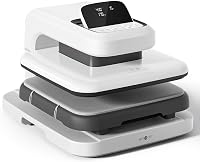
Cricut AutoPress 2 15x15: Best for guided projects

- 15 x 15 in heat plate
- Adjustable pressure up to 220 lb
- Auto Mode
- Bluetooth settings and interactive Heat Guide
A hands-free press with customizable settings and optional Bluetooth guidance through Cricut Design Space. Check that your mobile device and materials are compatible before choosing the app workflow.
Pros
- Pressure adjusts up to 220 lb
- Auto Mode supports hands-free operation
- Auto-adjusts for materials up to 1.8 in thick
- Full-slide out tray and insulated safety base
Cons
- Optional app experience requires a compatible mobile device, Bluetooth and high-speed internet
- Materials and accessories are sold separately
Cricut provides 4 customizable presets controlled with the Control Pod. You can also connect a compatible mobile device through Bluetooth to send settings from Cricut Design Space and use the interactive Heat Guide.
The connected experience is optional. It requires a compatible device, Bluetooth, high-speed internet and the Cricut Design Space mobile app, so confirm that setup works for you before making it part of your routine.
Who should choose the Cricut AutoPress 2?
Choose it for varied apparel and decor projects that benefit from hands-free pressing, a large plate or thicker-item clearance. The press adjusts for materials up to 1.8 in high, and its stated pressure range reaches 220 lb.
The maximum pressure is a capability, not a target for every transfer. Use the transfer material’s instructions to choose settings for the garment and project stack.
Skip this model if you won't use its adjustable settings or app guidance and your projects fit a simpler press. Also look elsewhere if your workspace cannot accommodate the machine and its full-slide out tray.
How do the 3 automatic presses compare?
The Cricut has the highest stated pressure limit and material height among these 3 presses. HTVRONT Auto Heat Press 2 is close on height and includes adjustable pressure, while the original HTVRONT focuses on automatic pressing and selectable modes.
| Feature | Cricut AutoPress 2 | HTVRONT Auto Heat Press | HTVRONT Auto Heat Press 2 |
|---|---|---|---|
| Plate or press size | 15 x 15 in | 15 x 15 in | 15 x 15 in |
| Stated pressure | Up to 220 lb | Not stated | Up to 170 lb |
| Project thickness or height | Up to 1.8 in | Up to 1 in | Up to 1.77 in |
| Automatic operation | Hands-free Auto Mode | Automatic press and release | Automatic press and release |
| Connected guidance | Bluetooth and interactive Heat Guide | Not stated | Not stated |
| Auto-off | Auto-off feature | After 15 minutes without use | After 15 minutes without operation |
The Cricut includes an insulated safety base and full-slide out tray. HTVRONT describes a drawer slide design on its original model; the Auto Heat Press 2 has a screen with 7 manually adjustable angle positions.
For other 15 x 15 in options, see our guide to 15 x 15 heat presses. If you're choosing between the HTVRONT models, our HTVRONT Auto Heat Press comparison explains their differences.
How should you choose between the Cricut and HTVRONT?
Choose by the jobs you plan to make, the controls you want and the space you can give the press. A wider plate is useful only when your transfers and garments call for it, and automatic operation does not remove the need to set up each project correctly.
Pick the Cricut AutoPress 2 for its higher pressure limit, thicker-material clearance and optional Heat Guide. It is the strongest match here for crafters who want one press for several compatible transfer types and are comfortable checking device requirements.
Pick the HTVRONT Auto Heat Press 2 if you want adjustable pressure and an automatic release with a manually angled screen. Its pressure ceiling is lower than Cricut’s, but its 1.77 in stated height limit is close to Cricut’s.
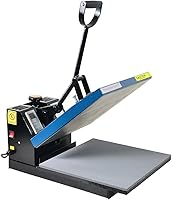
Pick the original HTVRONT Auto Heat Press if your projects fit within 1 in and its four fast modes, two custom modes and auto mode suit your routine. Skip it for thicker projects that exceed that limit.
For a broader look at machine styles and trade-offs, read our heat press guide. If you’re new to the category, our heat press for beginners guide explains what to compare before you buy.
What should you prepare before setup?
Clear a stable work area and check the complete project stack before switching on the press. The Cricut measures 16.25 in long, 21.05 in wide and 11.56 in high, and you need room for the tray to slide out.
Place the machine where you can load and unload garments without reaching across the hot plate. Keep the work surface clear of loose tools and materials that could get in the way of the tray or garment.
Before pressing, confirm that the material is compatible and that your device meets Cricut’s current requirements if you plan to use Bluetooth guidance. Gather the garment, transfer and any compatible tools or accessories you need; those materials and accessories are sold separately.
What use tips help prevent common mistakes?
Match temperature, time and pressure to the specific transfer and material instructions. A machine preset or app recommendation is a starting point for a project, not a reason to ignore the guidance for the material you are using.
Measure the full project stack before loading it. Include thick seams, folds and layers that sit beneath the transfer, since the press needs to accommodate the complete item within its height limit.
Position the design and garment before starting Auto Mode, then keep the tray’s path clear. Avoid pulling or shifting the garment while the press is operating, and wait for the cycle to finish before removing the item.
Do not assume every project needs the maximum pressure or the full plate area. Use the pressure and placement guidance for your transfer, and make sure the design sits where you want it before pressing.
For help setting pressure, read our heat press pressure guide. If you're pressing a sweatshirt, our hoodie heat pressing steps cover garment placement and common setup choices.
What are the trade-offs?
The Cricut’s strongest advantages are its adjustable pressure, thick-item clearance and optional guided settings. Its size and app requirements may be unnecessary if you press a narrow range of projects and prefer a simple control routine.
The HTVRONT Auto Heat Press 2 offers adjustable pressure up to 170 lb, automatic release and a screen you can angle by hand. The original HTVRONT offers automatic pressing and release, but its stated material thickness limit is lower.
No press setting guarantees the same result across every transfer, garment and project stack. Follow the instructions for your specific materials and avoid reusing one temperature and timing recipe for unrelated projects.
What is the final decision in this Cricut AutoPress 2 review?
Buy the Cricut AutoPress 2 if its 220 lb pressure ceiling, 1.8 in clearance and app guidance match your projects and workspace. Choose HTVRONT Auto Heat Press 2 for adjustable pressure with its own controls, or the original HTVRONT if your projects fit within 1 in and its preset modes cover your needs.
Measure the work area and the thickest item you expect to press before deciding. For a closer look at the simpler automatic option, read our HTVRONT Auto Heat Press review.
Frequently asked questions
Is the Cricut AutoPress 2 worth considering?
The Cricut AutoPress 2 is worth considering if you want hands-free Auto Mode, adjustable pressure up to 220 lb and optional app-based guidance. Its 15 x 15 in plate suits larger apparel projects.
Compare those features with the HTVRONT alternatives, then check your workspace, device compatibility and material needs before choosing.
What materials can the Cricut AutoPress 2 press?
Cricut says the press is compatible with DTF, iron-on vinyl including Puff Iron-On, Infusible Ink and sublimation products. Compatible materials, tools and accessories are sold separately.
Check Cricut's current compatibility guidance for your exact material and project before pressing.
How thick a project can the Cricut AutoPress 2 handle?
The Cricut AutoPress 2 auto-adjusts for materials up to 1.8 in thick. Measure the full project stack, including the garment and transfer layers, before loading it.
HTVRONT Auto Heat Press 2 has a stated height limit of 1.77 in, while the original HTVRONT Auto Heat Press adjusts for projects up to 1 in thick.
Does the Cricut AutoPress 2 need a phone?
Basic presets can be controlled with the Control Pod. The optional integrated pressing experience uses Bluetooth and Cricut Design Space on a compatible mobile device, with high-speed internet.
Check Cricut's current system requirements before relying on connected features.