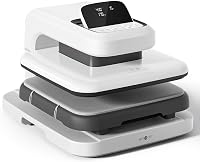
HTVRONT Auto Heat Press vs Auto Heat Press 2: Which Is Better? (October 2026)
For the HTVRONT Auto Heat Press vs Auto Heat Press 2, choose model 2 for adjustable pressure and projects up to 1.77 in high; choose the original for its modes and projects up to 1 in thick. Both have a 15 x 15 in pressing area and automatic release.
On this page (9 sections)
- HTVRONT Auto Heat Press vs Auto Heat Press 2: what changes?
- Which model suits your projects?
- Does adjustable pressure matter for your work?
- How do the controls and work areas compare?
- Which press heats up faster?
- Should you consider Cricut AutoPress 2 instead?
- How should you set up and care for an automatic press?
- What common mistakes should you avoid?
- Which HTVRONT auto press should you choose?
For the HTVRONT Auto Heat Press vs Auto Heat Press 2, choose model 2 if you need adjustable pressure or extra room for thick projects; choose the original for standard projects and its mode options. Both have a 15 x 15 in pressing area and automatically release at the end of a cycle.
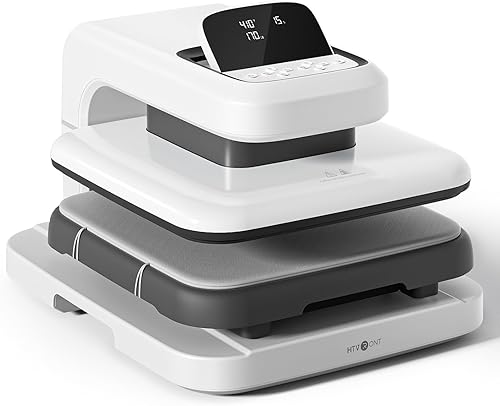
The biggest difference is how they handle pressure and project height. Auto Heat Press 2 lets you adjust pressure up to 170 lb and accommodates projects up to 1.77 in high, while the original auto-adjusts for projects up to 1 in thick.

HTVRONT Auto Heat Press vs Auto Heat Press 2: what changes?
Auto Heat Press 2 adds adjustable pressure and more height; the original offers fast, custom and auto modes. Both presses use an automatic cycle, so your choice comes down to how much control and clearance your projects need.
With the original, load your project, slide the ironing board in and press R to start. You can choose among 4 fast modes, 2 custom modes and an auto mode.
For Auto Heat Press 2, set the parameters and press R to start its automatic cycle. The machine buzzes when time is up and releases the material.
That workflow can help when you have several pieces to press, but the timer does not replace your attention to placement or material instructions. Stay nearby and check the transfer when the cycle ends.
Which model suits your projects?
The original suits standard shirts, totes and other projects up to 1 in thick; Auto Heat Press 2 suits taller or bulkier items. Match the press to your thickest regular project, not just the lightest shirt you plan to make.
HTVRONT specifically mentions hoodies for Auto Heat Press 2. Its 1.77 in height allowance gives you more room for bulky garments than the original's 1 in limit.
The original can still work for some hoodies if the garment fits within its limit and lies flat where the design goes. If you regularly press thick sweatshirts or layered items, choose the second model.
Our guide to heat presses for hoodies and thick garments covers clearance and setup considerations.
Skip both if your projects need a larger pressing area than 15 x 15 in, or if you need a press style that better suits your workspace. Compare sizes and designs in our heat press guide before deciding.
Does adjustable pressure matter for your work?
Choose Auto Heat Press 2 if you want to set pressure for different materials or DTF projects. Choose the original if automatic adjustment is enough for the materials and projects you handle.
HTVRONT specifies pressure adjustment up to 170 lb for Auto Heat Press 2 and mentions DTF use. The original auto-adjusts to project thickness, but its listed features do not include user-set pressure.
Use the transfer material's recommended temperature, time and pressure as your starting point. Don't assume that one setting works for every vinyl, transfer or garment.
Our heat press pressure settings guide explains why pressure needs to match the material and project.
If you expect to change pressure often, the second model gives you direct control. If you prefer to choose a mode and start a routine cycle, the original has the simpler case.
How do the controls and work areas compare?
Both models have a 15 x 15 in pressing area; the original names more operating modes, while Auto Heat Press 2 has an angle-adjustable screen. These differences affect how you operate and position the press, not the size of the design area.
Auto Heat Press 2's screen has 7 angle levels across a 0 to 75 degree range. Adjusting it can make the controls easier to view from your working position.
The original's 4 fast modes, 2 custom modes and auto mode give you several named choices for recurring projects. If you already know the settings you use, custom modes may fit that workflow.
A 15 x 15 in platen is useful for many shirt designs, but a design's dimensions are not the only issue. You also need enough clear space around the machine to load garments and reach the controls.
Measure your table and workspace before buying.
Which press heats up faster?
The published heat-up figures don't make a direct speed comparison because they use different temperatures. The original is specified to reach 320°F in 4 minutes and 410°F in about 5 minutes and 30 seconds; Auto Heat Press 2 reaches 410°F in 5 minutes and 30 seconds.
Both models use NTC thermistor technology and a dual-tube heating engine. HTVRONT describes both as heating evenly, but your transfer still depends on using the right material settings and placing the design correctly.
Allow the press to reach its set temperature before beginning. Keep a small routine consistent: prepare the garment, position the transfer, confirm the settings, then start the automatic cycle.
Should you consider Cricut AutoPress 2 instead?
Cricut AutoPress 2 is a better fit if you want Bluetooth settings and an interactive Heat Guide. It also offers adjustable pressure up to 220 lb and accommodates projects up to 1.8 in high.
Cricut lists compatibility with DTF, HTV, Infusible Ink and sublimation materials. Its optional integrated pressing experience requires a compatible mobile device, internet access and Cricut Design Space.
The Cricut's pressure range and height allowance are higher than HTVRONT Auto Heat Press 2's listed limits. That does not make it the right choice for everyone: the guided mobile workflow matters only if you want to use it and have the required setup.
If you prefer HTVRONT, our HTVRONT Auto Heat Press review takes a closer look at the original model.
How should you set up and care for an automatic press?
Set the press on a stable work surface, leave room to slide the board or tray, and follow the instructions for your exact model. A clear setup helps you position garments without reaching across the hot plate.
Before the first project, check that the work area can accommodate the press and the garment you want to load. The original measures 20 in long, 12 in wide and 16 in high; Auto Heat Press 2 measures 20.9 in long, 17.1 in wide and 13 in high.
Keep cords and loose materials out of the sliding path. Use the controls only as directed, and do not treat an auto-release cycle as a reason to leave the work area.
For care, let the machine cool as directed before cleaning or storing it. Keep the platen and work surface free of transfer scraps, lint and other debris.
Follow the brand's instructions for cleaning. Don't use an abrasive cleaner or put liquid on a hot machine.
Both HTVRONT models have a 15-minute auto-off feature. It is a useful safety feature, but it doesn't replace switching off and unplugging the press as the instructions direct.
What common mistakes should you avoid?
The most common avoidable problems come from choosing the wrong project height, using unsuitable settings or starting before the garment is positioned correctly. Take a moment to check each of these before you press.
First, measure the thickest area that will sit under the platen. Seams, pockets and folds can add height, so a garment that seems thin when laid flat may need more clearance at the design location.
Second, follow the transfer material's recommended temperature, time and pressure. A preset or saved mode is convenient, but confirm it matches the material you're using.
Third, smooth and position the garment before starting the cycle. A crease or crooked transfer can be harder to correct after pressing.
Finally, keep hands clear of the heating area and use the sliding board or tray as intended. Let the press release at the end of the cycle, then handle the project according to the transfer material's instructions.
For step-by-step garment preparation, see how to heat press a shirt. If you're new to the process, our heat press guide for beginners covers the choices to make before buying.
Which HTVRONT auto press should you choose?
Choose Auto Heat Press 2 for adjustable pressure, DTF work or projects that need extra height; choose the original for standard projects up to 1 in and its preset modes. That decision rule covers the main difference in the HTVRONT Auto Heat Press vs Auto Heat Press 2 comparison.
The original's 8.4 score reflects its automatic cycle, 15 x 15 in area and range of modes for common projects. Auto Heat Press 2 scores 8.7 because its pressure adjustment and added clearance suit more demanding project heights.
If you don't need either model's automatic workflow, or your work regularly exceeds a 15 x 15 in area, compare other designs in our guide to the best heat presses for home and small shops.
Frequently asked questions
What is the main difference between the HTVRONT Auto Heat Press and Auto Heat Press 2?
Auto Heat Press 2 adds adjustable pressure up to 170 lb and clearance for projects up to 1.77 in high. The original automatically adjusts for projects up to 1 in thick and offers 4 fast modes, 2 custom modes and an auto mode.
Can the original HTVRONT Auto Heat Press handle hoodies?
The original is specified for projects up to 1 in thick, while Auto Heat Press 2 accommodates items up to 1.77 in high and specifically mentions hoodies. Check the garment's thickness and how it sits on the pressing area before choosing.
Is the HTVRONT Auto Heat Press 2 better for DTF?
It can be a better fit if you want adjustable pressure for DTF projects, since it adjusts up to 170 lb and HTVRONT specifically mentions DTF. Cricut AutoPress 2 also lists DTF compatibility and adjustable pressure up to 220 lb.
Does the Auto Heat Press 2 release automatically?
Yes. After you set the parameters and press R, Auto Heat Press 2 completes the timed cycle, buzzes when it finishes and releases the material automatically.
The original also releases automatically when its timer ends.